
How to set up Winkeys
after you download it
Drag Winkeys into Applications, allow it in System Settings, then press Start. Closing the window leaves shortcuts running. Press Stop, then Command and Q, to quit the app.
Install
Drag Winkeys into Applications
Open the disk image you downloaded. Drag the Winkeys icon onto the Applications folder.
Drop the app into Applications
In the Winkeys window, drag the app icon to the right and drop it on Applications. macOS copies the app there.
Download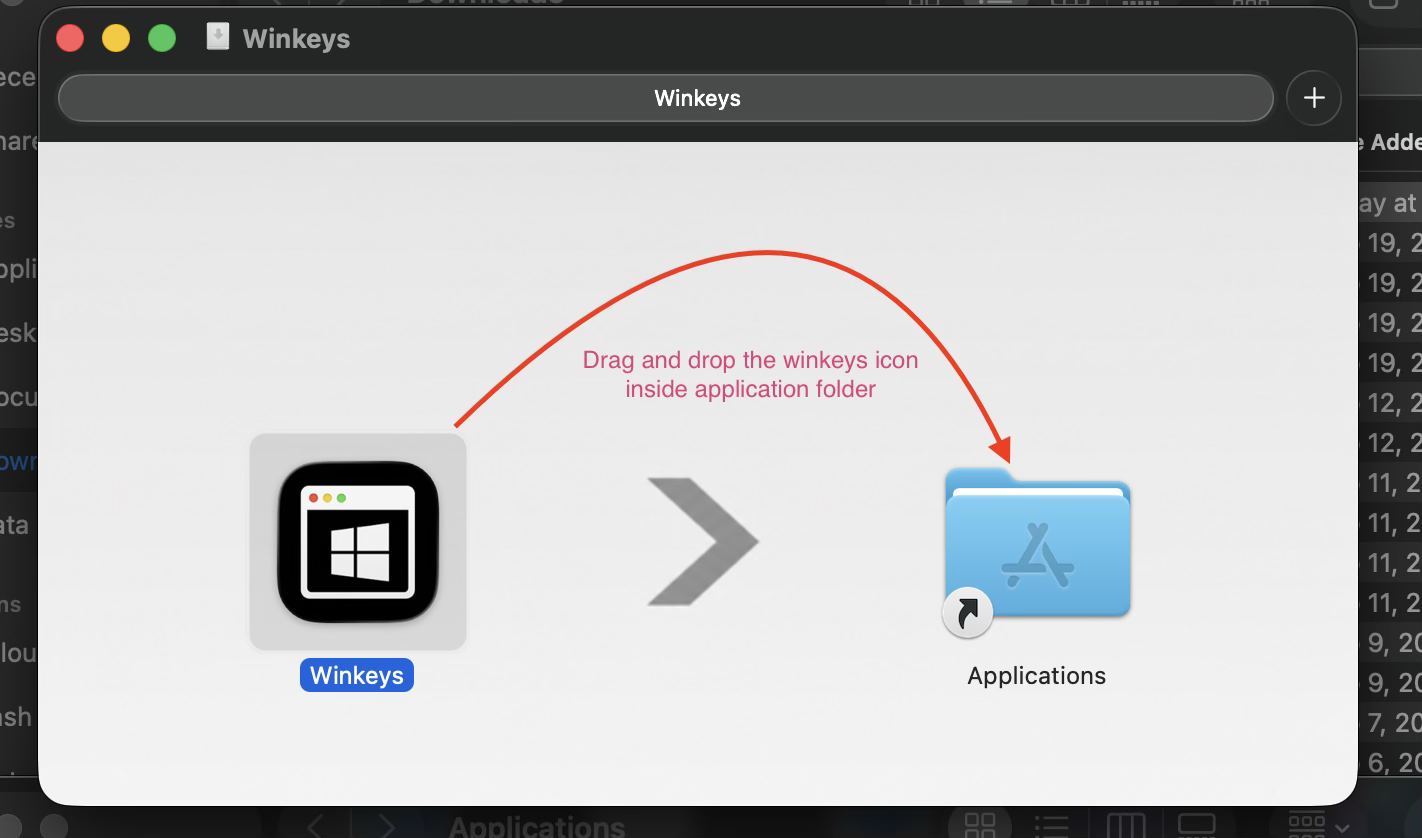
Eject the installer disk
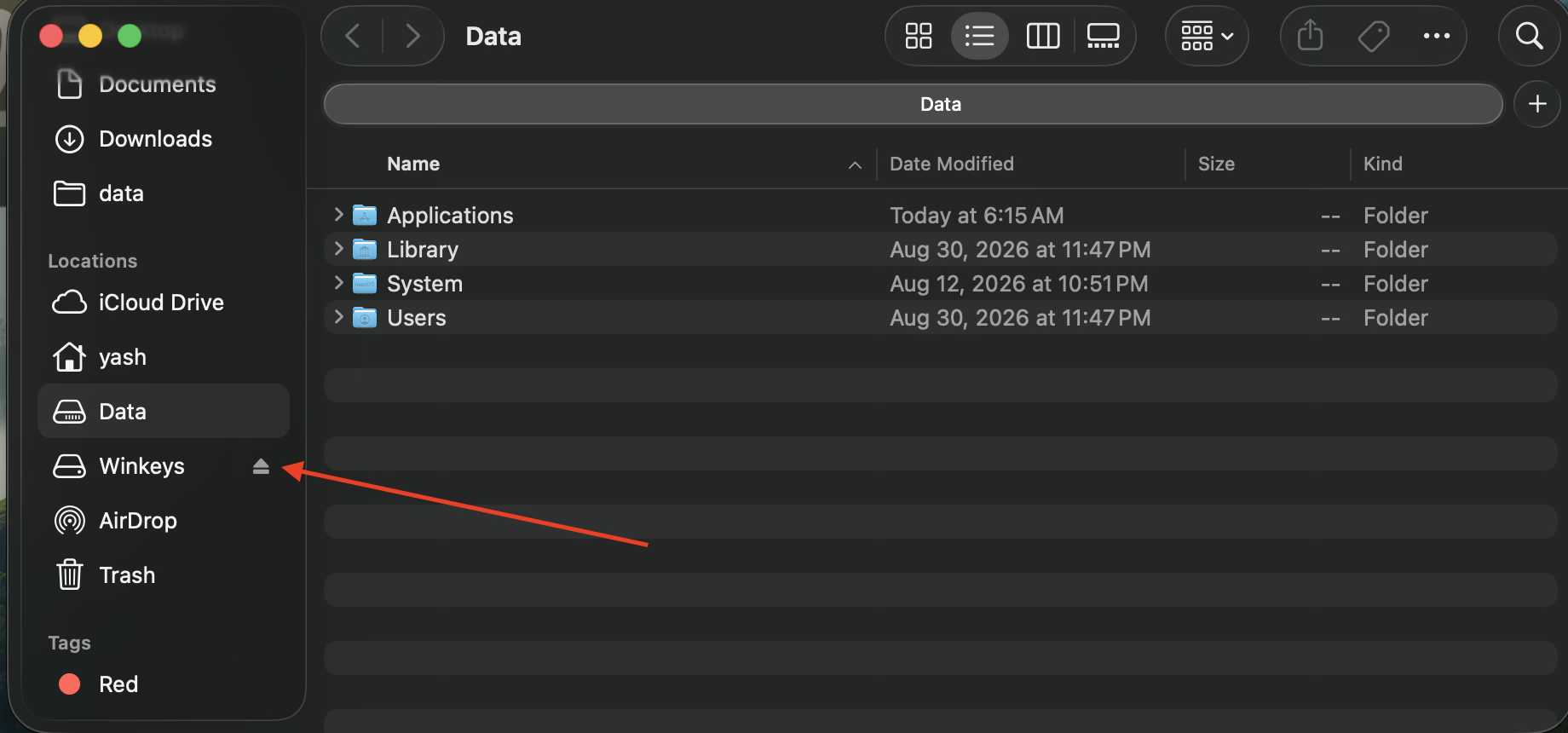
In Finder, click the eject arrow next to Winkeys in the sidebar. That closes the disk image. The app stays in Applications.
Permission
Allow Winkeys, then press Start
Open Winkeys from Applications. macOS blocks keyboard remapping until you allow the app. On macOS 27 that switch is Device Control and Data Access. On earlier macOS it is Accessibility.
Open the permission prompt
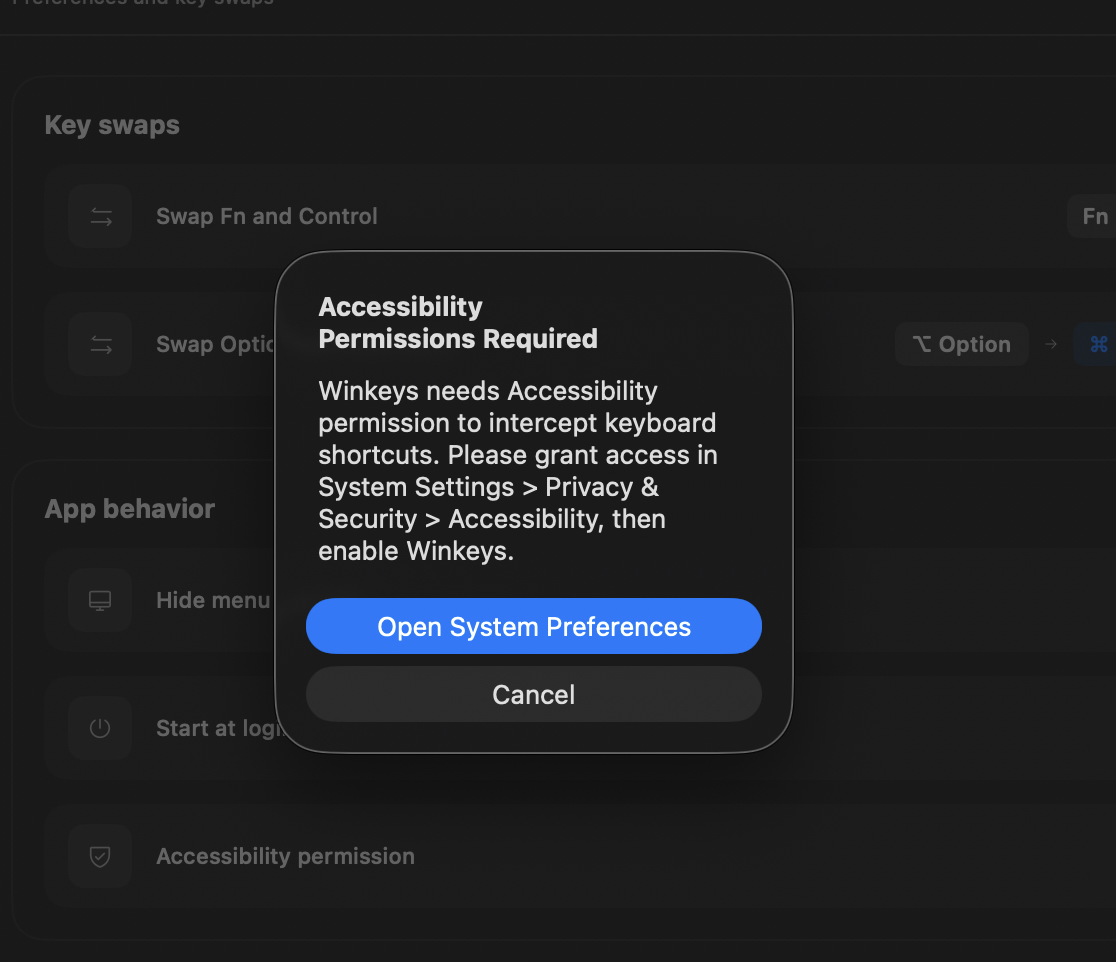
The first time you open Winkeys, one dialog appears. On macOS 27 the title is Device Control and Data Access Required. On earlier macOS the title is Accessibility Permissions Required. Click Open System Settings.
Turn the Winkeys switch on
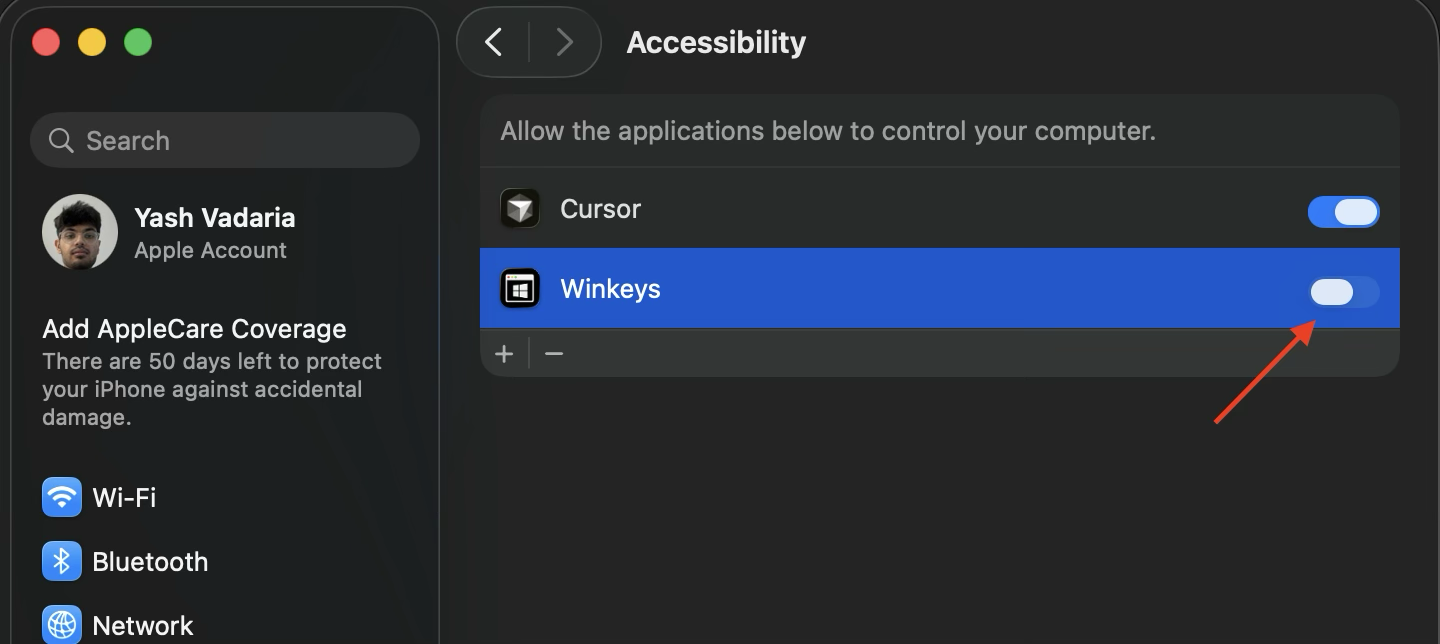
On macOS 27, open System Settings, then Privacy and Security, then Device Control and Data Access. Turn the Winkeys switch on.
On macOS 26 and earlier, open Privacy and Security, then Accessibility. Turn the Winkeys switch on. If Winkeys is missing, click the plus button and add it from Applications.
Start and stop shortcuts
Go back to Winkeys and press Start. Shortcuts run. Press Stop when you want them paused. Press Start again to turn them back on.
Background
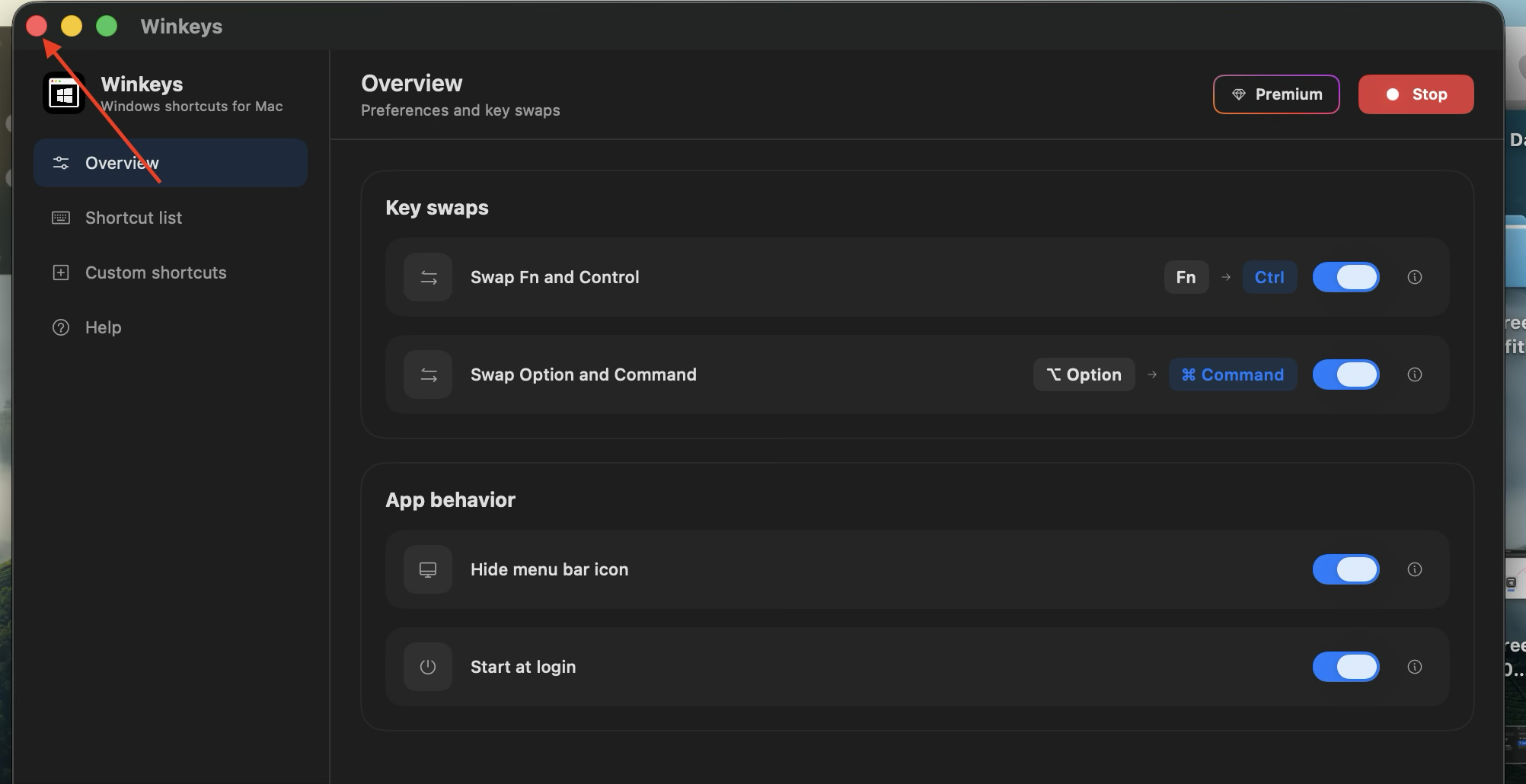
Closing the window does not quit Winkeys
The red close button hides the window. Shortcuts keep running in the background.
Menu bar and login
Hide menu bar icon hides or shows Winkeys in the top bar. Turn it on to hide the icon. Turn it off to keep the icon visible.
Start at login opens Winkeys when you log in. Turn it off if you want to open the app yourself.
Quit, or delete the app
To quit, press Stop, then press Command and Q. Shortcuts stop, and Winkeys leaves the background.
To delete Winkeys, quit it first. Then open Applications and move Winkeys to the Trash.
Function keys
Turn on standard function keys
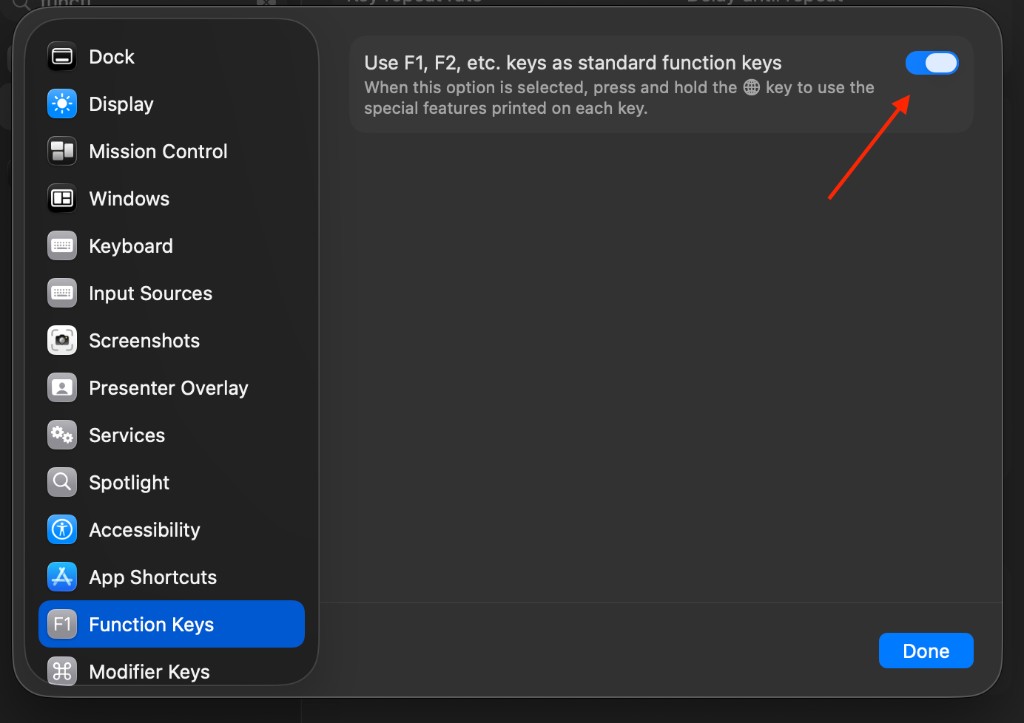
macOS uses F1 through F12 for brightness and volume unless you change this. Winkeys needs those keys as normal function keys so Fn can act as Windows Ctrl.
Open Function Keys
Open System Settings, search for function, then click Function Keys under Keyboard.
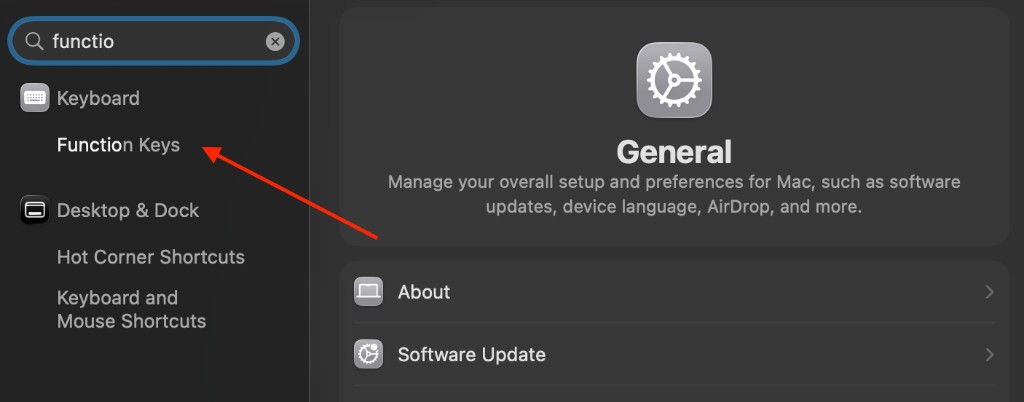
Use F1, F2, and the rest as function keys
Turn on Use F1, F2, etc. keys as standard function keys, then click Done.
Setup questions
Does closing the window quit Winkeys?
The red close button hides the window. Shortcuts keep running. Press Stop, then Command and Q, to quit.
Why does Winkeys need this permission?
macOS only lets an app remap keys after you turn it on. On macOS 27 the switch is under Privacy and Security, then Device Control and Data Access. On earlier macOS it is under Privacy and Security, then Accessibility. Without that switch, Start cannot change shortcuts.
How do I delete Winkeys?
Press Stop, then Command and Q. Open Applications and move Winkeys to the Trash.